Collect Form
Enhance user engagement with interactive forms using the Collect Form feature in Mark360.
Customize headers, questions, and footers effortlessly while securely storing user responses in variables.
Understanding "Collect Form"
The Collect Form (or Ask Form) card enables you to send interactive forms within your chatbot, allowing users to input information seamlessly.
It includes customization options for Header, Question, Footer, Button, and Variable Storage, giving you full control over your form’s structure and behavior.
Collect Form Essentials
Before setting up your Collect Form in Mark360, here’s what each field means 👇
Header Text
Add an optional header to introduce or title your form.
This helps users understand the purpose of the form right away.
💬 Examples:
“Survey Form”
“Booking Form”
“Customer Feedback”

📝 Tip: Keep your header short and relevant to your form’s topic.
Question Text
This is where you define the main query or prompt for your users — the core of your form.
💬 Examples:
“What is your feedback?”
“Please enter your booking details.”
“Share your contact number to proceed.”

📝 Tip: Use clear, action-oriented questions that make it easy for users to respond.
Footer
You can include a footer message for additional information or to add a closing note.
It’s a great way to thank users or provide follow-up instructions.
💬 Examples:
“Thank you for your response!”
“Your input helps us serve you better.”
“We appreciate your time!”

Button Name
Define the text that appears on your form submission button.
This is the call-to-action users will click after filling out the form.
💬 Examples:
“Submit”
“Send Response”
“Next”

📝 Tip: Keep it simple and clear — one or two words work best.
WhatsApp Flow
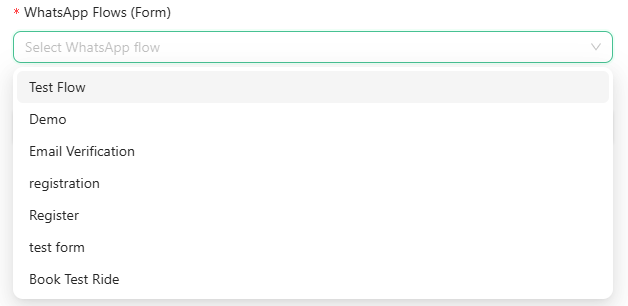
Select the WhatsApp Flow that you want to associate with this form.
A WhatsApp flow allows your chatbot to handle user responses automatically.
💡 Example:
If your form collects booking details, link it with a Booking Confirmation Flow to automate the next step.
Response Storage Variable
Store user responses in a variable for later use, such as personalization, analytics, or follow-up messages.
Variables help you maintain a smooth and dynamic chatbot experience.

💻 Example Variable: {{variable.user_feedback}}
Variable Naming Rules:
- Must start with an alphabet (A–Z or a–z)
- Can contain underscores (_)
- No spaces or special characters allowed